



What is the difference between the profile image and the cover photo and where do they show up?
The Profile Image is the small image which shows up on your Directory Listing and in search results – see the image below. You can decide whether to display a photo (generally better for individual members) or a logo (generally better for Registered Practices). If you don’t upload a profile picture, or (in the case of an individual member) if you choose not to display it, then a default icon will appear instead.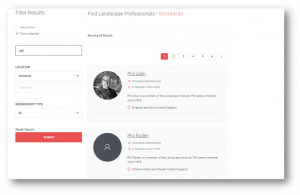 The Cover Photo appears in your Directory Listing as the header image. It’s an opportunity to display photos or graphics which showcase your work or your services. If you don’t upload a new cover photo, then the default Cover Photo image will show instead. The image below shows the Profile Image and Cover Photo for a sample Directory Listing.
How do I update my Profile Image?
First, you’ll meed to be logged into your My LI Dashboard.
Updating your personal Profile Image
Go to My profile > My details, addresses and LI Directory Profile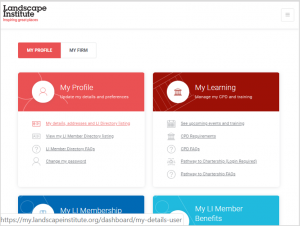 This will open your Profile page. You can upload a new Profile Image by clicking on the ‘Update Profile Image’ button in the header.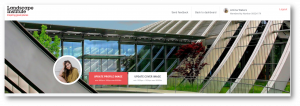
Updating your practice’s Profile Image
Note: you will need to be an authorised user for your practice, or else you will not see the ‘My Firm’ section.From the ‘My Firm’ section of Dashboard, Go to My practice profile > My practice details, addresses and LI Directory Profile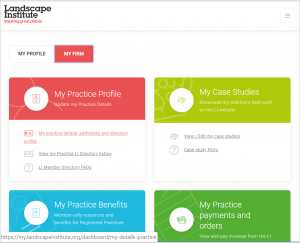 This will open your practice’s Profile page. You can upload a new Profile Image by clicking on the ‘Update Profile Image’ button in the header.
Profile Image guidelines
- You can upload images in either JPEG or PNG format.
- Images should be at least 500px x 500px and can be a maximum of 8MB.
- The image uploader will automatically select the centre of your image and crop it to display as a round image. You’ll get the best results if your original image is square (or round) and centred – so if you are not happy with how your image is displaying, try cropping it.
How do I update my Header Image?
First, you’ll meed to be logged into your My LI Dashboard.
Updating your personal Header Image
Go to My profile > My details, addresses and LI Directory ProfileThis will open your Profile page. You can upload a new Header Image by clicking on the ‘Update Header Image’ button in the header.
Updating your practice’s Header Image
Note: you will need to be an authorised user for your practice, or else you will not see the ‘My Firm’ section.From the ‘My Firm’ section of Dashboard, Go to My practice profile > My practice details, addresses and LI Directory ProfileThis will open your practice’s Profile page. You can upload a new Header Image by clicking on the ‘Update Header Image’ button in the header.
Header Image guidelines
- You can upload images in either JPEG or PNG format.
- Images should be at least 1920px x 1024px and can be a maximum of 8MB.
- The image uploader will automatically select the vertical centre of your image and, if needed, crop it to display in the header. If you’re not happy with how your image is displayed, try cropping it before uploading.